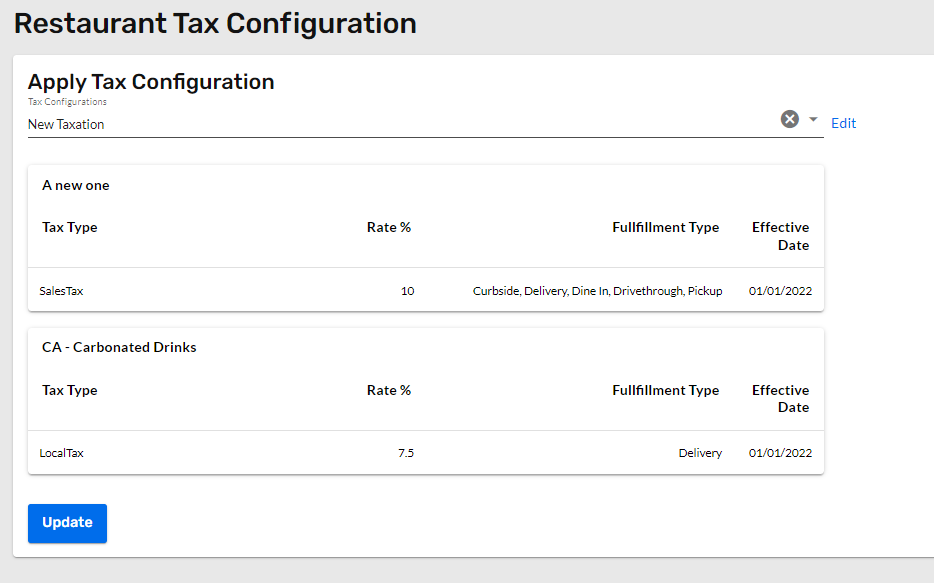
Adding and applying a tax configuration to a restaurant is easy with the the shared configurations feature. All that is required is selecting a tax configuration from a drop down and applying it to the restaurant. If none of the available tax configurations fit the restaurant, then a new configuration can be created - this article can help with that.
Note: There are multiple steps to have taxes begin charging a tax and applying a tax configuration to a restaurant is an important step. Taxes must also be set for the tax bucket within said tax configuration, as well as those tax bucket being applied to the menu elements. The combination of having a tax set in the tax bucket on the tax configuration, having that tax configuration applied to a restaurant, and having that tax bucket applied on menu elements allows taxes to be applied accordingly.
Applying a Tax Configuration to a Restaurant
- Navigate to the Restaurants section of the admin using the left hand navigation.
- Select the restaurant to apply the tax configuration from the restaurants list. Our sortable columns and filters can assist in finding the location.
- Once the restaurant is open, use the restaurant menu in the left hand navigation to find the "Taxes & Fees" section.
- After opening this section, click 'Taxes'
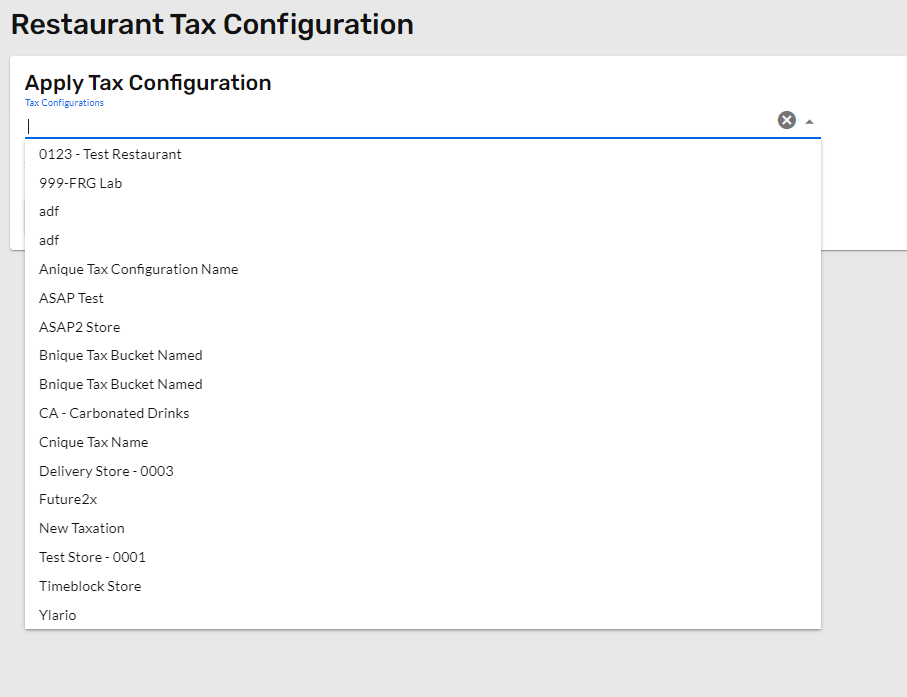
- Under "Apply Tax Configuration" open the drop down and select the tax configuration that applies to this restaurant.
- Click Update, and the taxation configuration is now applied.