
Time increments are the time intervals displayed on the order setup page for advanced orders (Ex: 10:00am, 10:15am, 10:30am...). Restaurant operators may want to adjust the intervals at which storefront users can submit future orders to ease strain on staffing or to allow time for the items to cook. This can be configured by using the time increment setting under restaurants.
To create a time increment:
- Ensure that a store is actively selected.
- In the navigation pane, expand the node for that store by clicking the store name.
- Click Order Setup.
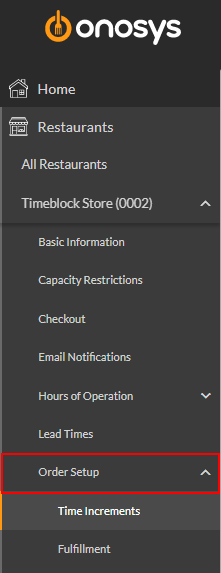
- Click Time Increments. The Time Increment page will populate to the right of the navigation pane.
- Click the +Create Time Increment button. A new line item will be created in list below.
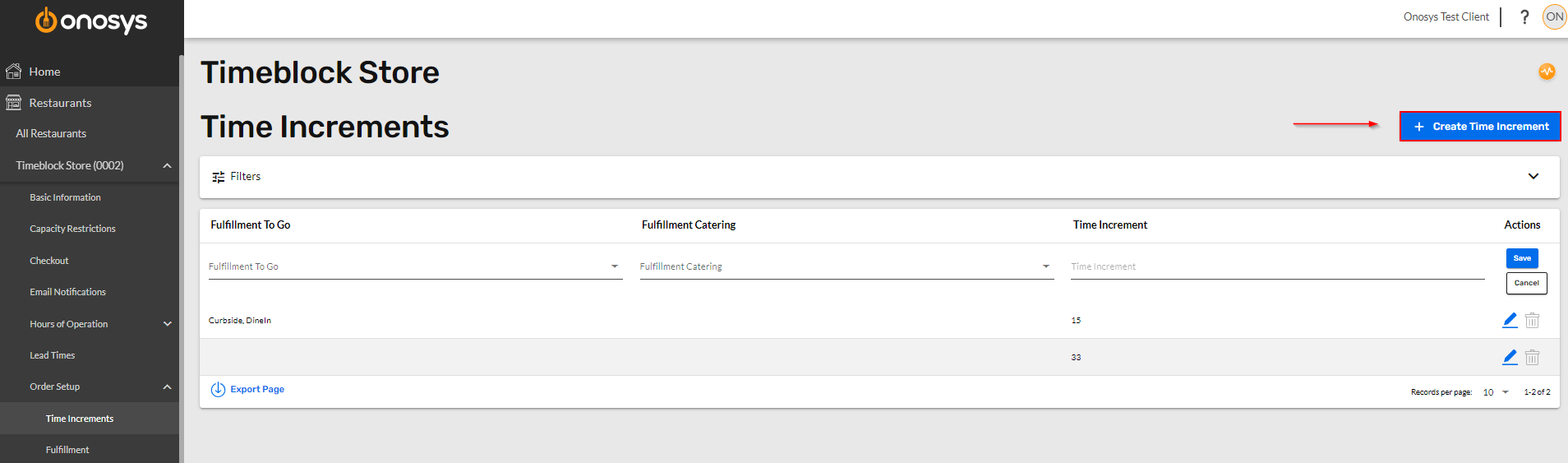
- Depending on the menu the change should be applied to, click the corresponding dropdown for To Go or Catering. To Go will be used in this example.
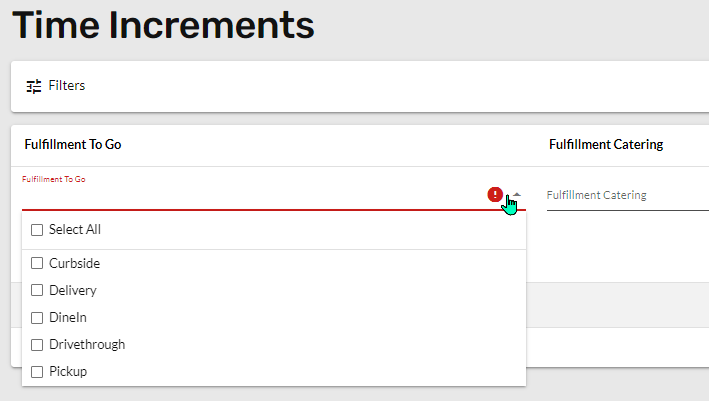
- Select the fulfillment types to apply the change to, or select all.
- Enter a numeric time increment in the Time Increment field.
- Click Save to apply the change. The new increment will be added to the list.
