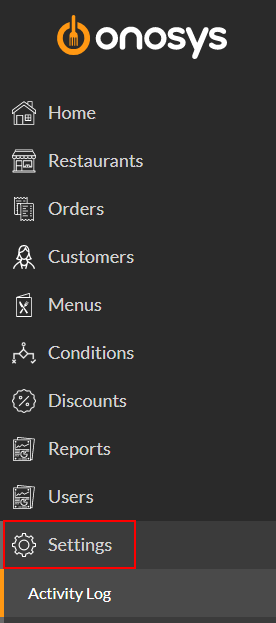
There is an activity log available to admin users that details all changes made to all configurations. The activity log is accessed from the navigation pane under Settings.
To view the Activity Log page, use the navigation pane and click Settings. Alternatively, the activity log can be accessed by clicking  on any page it appears.
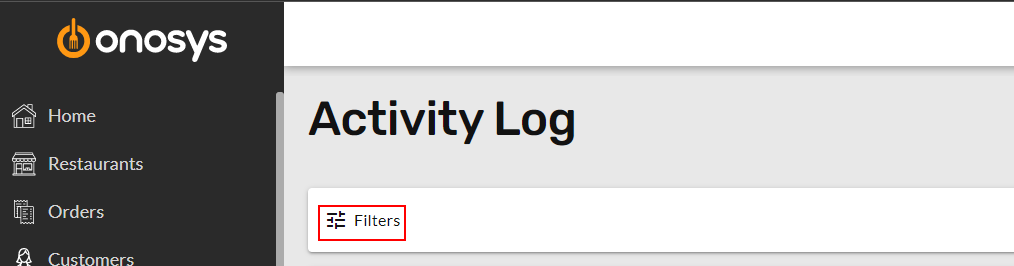
Once on the page, click Filters.
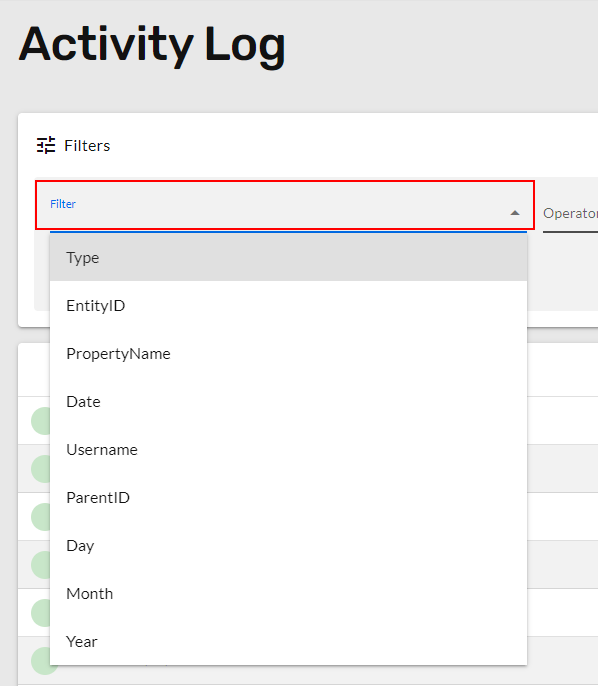
Start by selecting a filter criteria from the Filter dropdown. Definitions are as follows:
| Filter Name | Definition |
| Type | The admin page on which the change was made. |
| EntityID | This filter is for Onosys internal use. |
| PropertyName | An alias of the field that made the change. |
| Date | The date/time of the change. |
| UserName | Username that made the change. |
| ParentID | This filter is for Onosys internal use. |
| Day | The day of the month the change was made. |
| Month | The numerical month the change was made. |
| Year | The year the change was made. |
Next, select an Operator from the dropdown. Each Filter has corresponding operators. Operators are defined as follows:
| Operator Name | Definition | Use |
| Contains | Will return results that have all or part of the value. | Enter characters, such as a name or other identifier. |
| Does Not Contain | Will return results that Don't have all or part of the value. | Enter characters, such as a name or other identifier. |
| Starts With | Returns results that start with the value. | Enter characters, such as the beginning of a name or other identifier. |
| Equals | Returns only an exact match for the value. | Enter a numeric value. |
| Does Not Equal | Returns only results which do not match the value. | Enter a numeric value. |
| Less Than | Returns results less than the value. | Enter a date, time, or numeric value |
| Greater Than | Returns results greater than the value. | Enter a date, time, or numeric value |
| Less Than or Equal | Returns results less than or equal to the value. | Enter a date, time, or numeric value |
| Greater Than or Equal | Returns results greater than or equal to the value. | Enter a date, time, or numeric value |
Lastly, enter or select a Value. This will correspond to the Filter and Operator chosen.
More than one filter can be applied at one time.
When finished click Apply.

Examples
To search for specific activity by username:
- Click Filters.
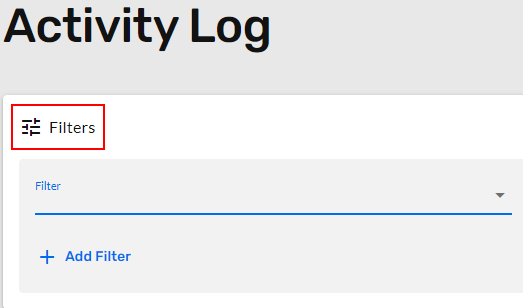
- Click Filter dropdown.
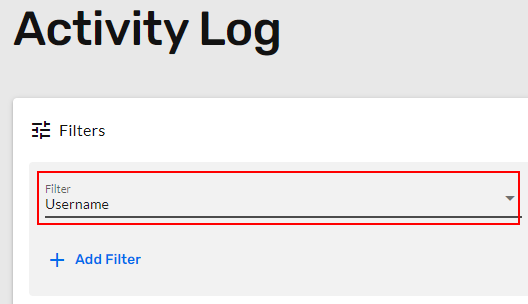
- Click Username.
- Click Operator dropdown.
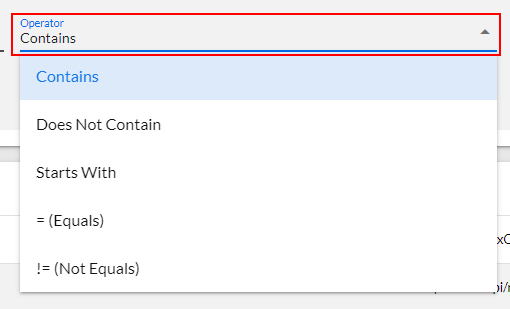
- Click Contains.

- Click the values field. Enter the name of the user who made the change.
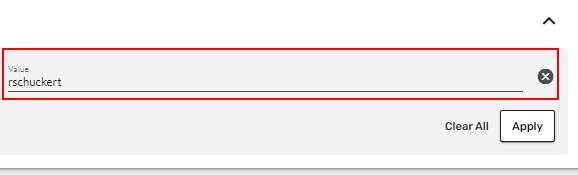
- Click Apply. Results appear below.
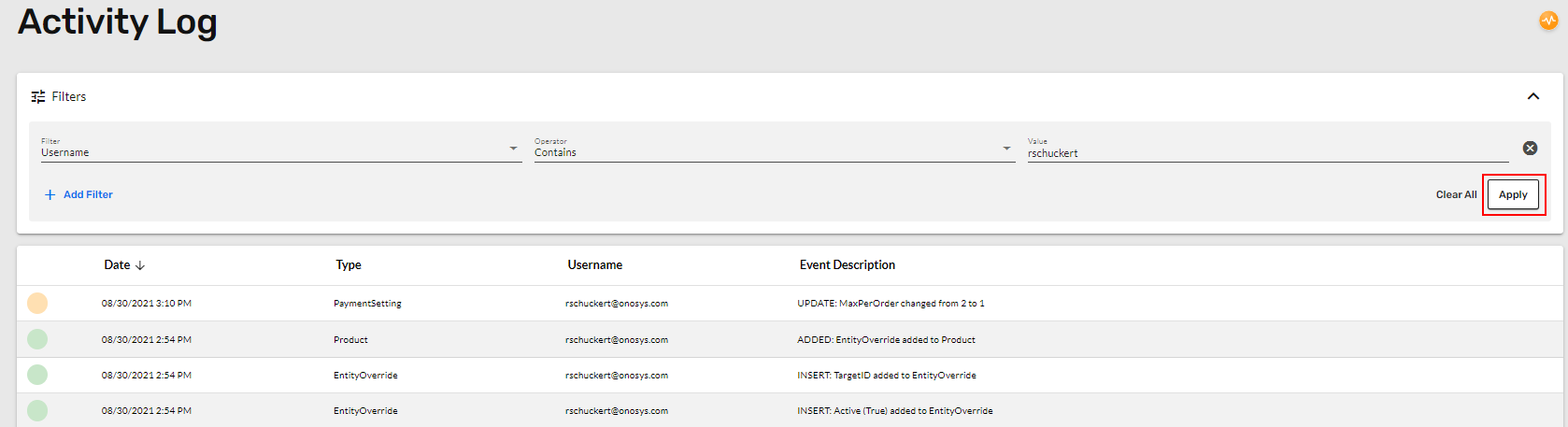
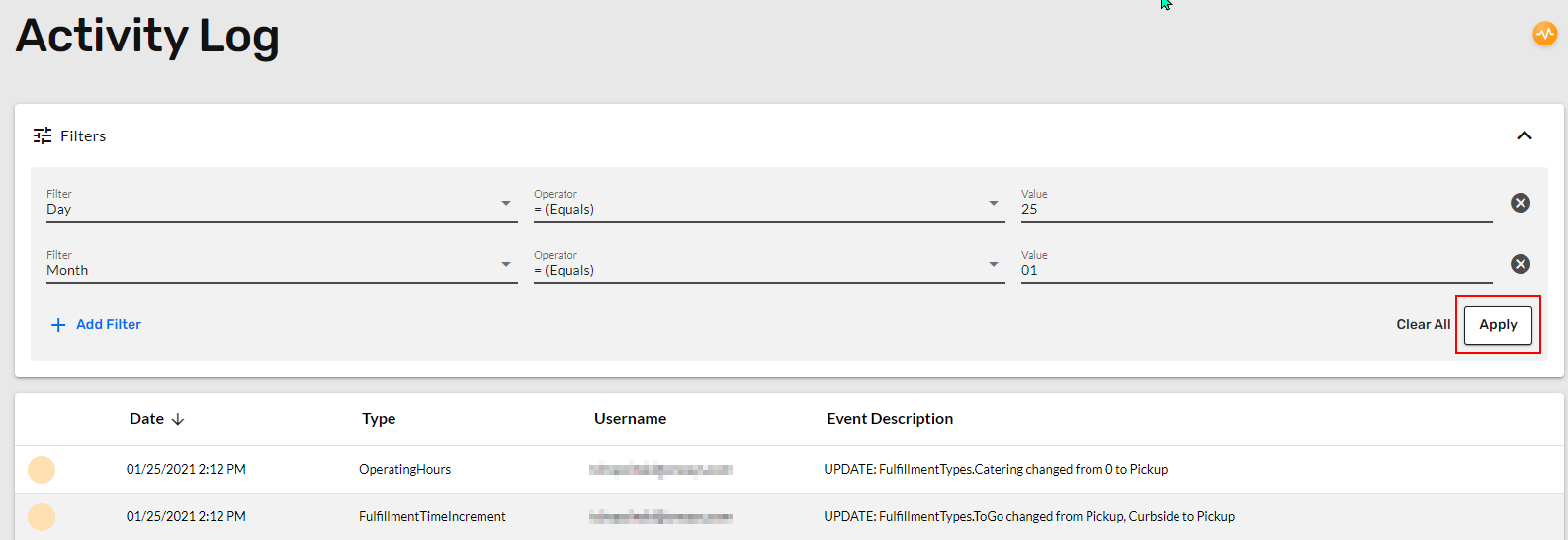
To search by day and month:
- Click Filters.
- Click Filter dropdown.
- Click Day.
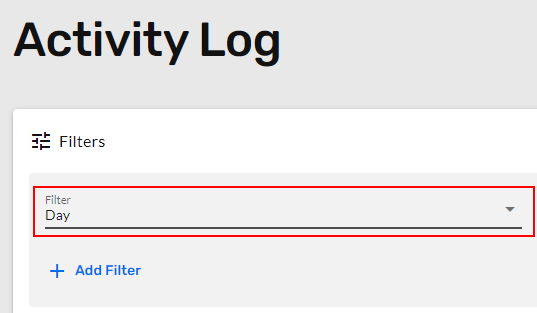
- Click Operator dropdown.
- Click an operator. This example will use Equals.

- Click the Value field.
- Type '25'.

- Click +Add Filter. Another filter line will populate.

- Click the new Filter dropdown.
- Click Month.
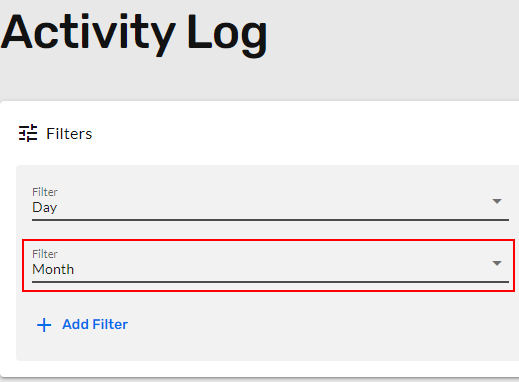
- Click the Operator dropdown.
- Click an operator. This example will use Equals.

- Click the Value field.
- Enter '01'.

- Click Apply. Results appear below.