
To set up a restaurant's hours of operation, a hours of operation configuration is needed. Hours of operation is a shared configuration created at the settings level. This means you create it once, and it can be applied across a variety of restaurants. Editing is easy too, and applies to all restaurant locations that have the configuration applied.
To add a hours of operation configuration, start by navigating to the Settings section in the left hand margin. From here, select the hours of operation section, and choose operating hours. On the Operating Hours list, click the button on the top right labeled '+ Create Operating Hour.' Follow the stepper to input the hours the restaurant is open, taking orders, deliveries, etc. and it will be ready to be applied to any restaurant(s).
-
Navigate to ""Settings"" in the left hand navigation and open the drop down.
-
Open "Hours of Operation"
-
Open "Operating Hours"
-
Click "+ Create Operating Hour" to create a new hours of operation configuration.
-
In the stepper, name the shared configuration carefully. The name is how you will find and apply the operating hours at a restaurant(s).
-
Save and Continue to move to the Update Operating Hours step.
-
Click "+ Add New Operating Hour." This will allow the first operating hour instance to be are created.
-
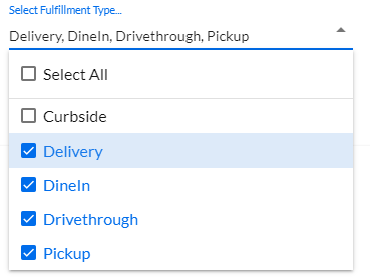
The first step is to select the fulfillment types for this set of operating hours. Options are Pickup, Delivery, Dine In, Curbside and Drive-through. More than one, and yes, all, can be selected. Note: A fulfillment type cannot have multiple sets of hours, but the hours can be different for each fulfillment type.
-
The "Business Hours" checkmark indicates if these are the business hours of the restaurant. Only one set of hours can be designated as the business hours, and this is what's reflected on the ordering site as the hours of operation for the restaurant.
-
If the hours are 24 hours, 7 days a week, select the "24x7" toggle. and click the save button.

-
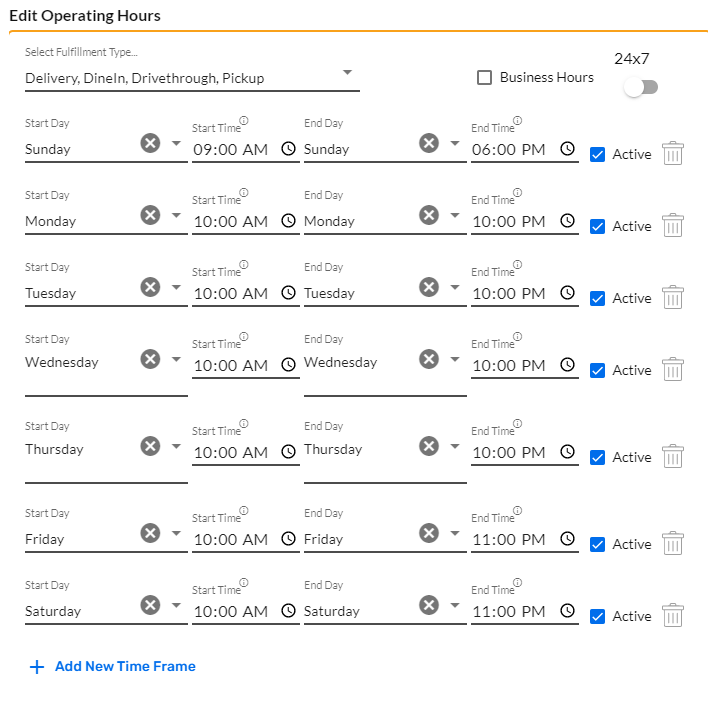
If the hours have an open and close each day, then begin adding each day's hours in the following format:
-
Each day has to be it's own line, for example:
-
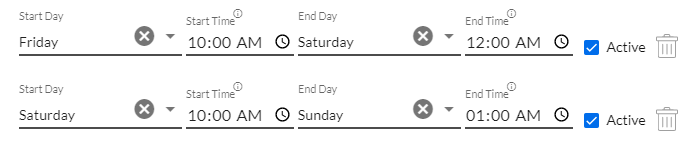
If a day's hours end the next day (a la, after 12:00am that night) the dates should be inserted as such:
-
-
If the first set of hours did not apply to all fulfillment types, create another set, and so on until all of your hours are input for the configuration.
- Click Save & Close, and the Operating Hours Configuration is completed, ready to be applied to any restaurant(s).