When viewing customers, there are several methods of filtering the results so that only the most relevant are displayed.
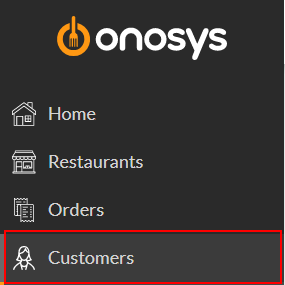
To view the Customers page, use the navigation pane and click Customers.
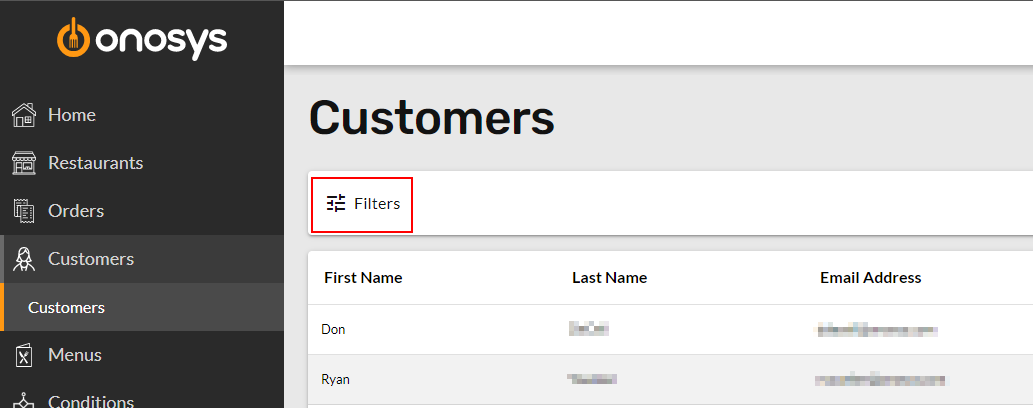
Once on the page, click Filters.
Start by selecting a filter criteria from the Filter dropdown. Definitions are as follows:
| Filter Name | Definition |
| FirstName | First Name of the customer. |
| LastName | Last Name of the customer. |
| The customer's Email address. | |
| Phone | Customer's phone number. |
| MostRecentOrderDate | The last date the customer placed an order. |
| DateCreated | The date that the customer first placed an order. |
Next, select an Operator from the dropdown. Each Filter has corresponding operators. Operators are defined as follows:
| Operator Name | Definition | Use |
| Contains | Will return results that have all or part of the value. | Enter characters, such as a name or other identifier. |
| Does Not Contain | Will return results that Don't have all or part of the value. | Enter characters, such as a name or other identifier. |
| Starts With | Returns results that start with the value. | Enter characters, such as the beginning of a name or other identifier. |
| Equals | Returns only an exact match for the value. | Enter a date, time, or numeric value |
| Does Not Equal | Returns only results which do not match the value. | Enter a date, time, or numeric value |
| Less Than | Returns results less than the value. | Enter a date, time, or numeric value |
| Greater Than | Returns results greater than the value. | Enter a date, time, or numeric value |
| Less Than or Equal | Returns results less than or equal to the value. | Enter a date, time, or numeric value |
| Greater Than or Equal | Returns results greater than or equal to the value. | Enter a date, time, or numeric value |
Lastly, enter or select a Value. This will correspond to the Filter and Operator chosen.
More than one filter can be applied at one time.
When finished click Apply.

Examples
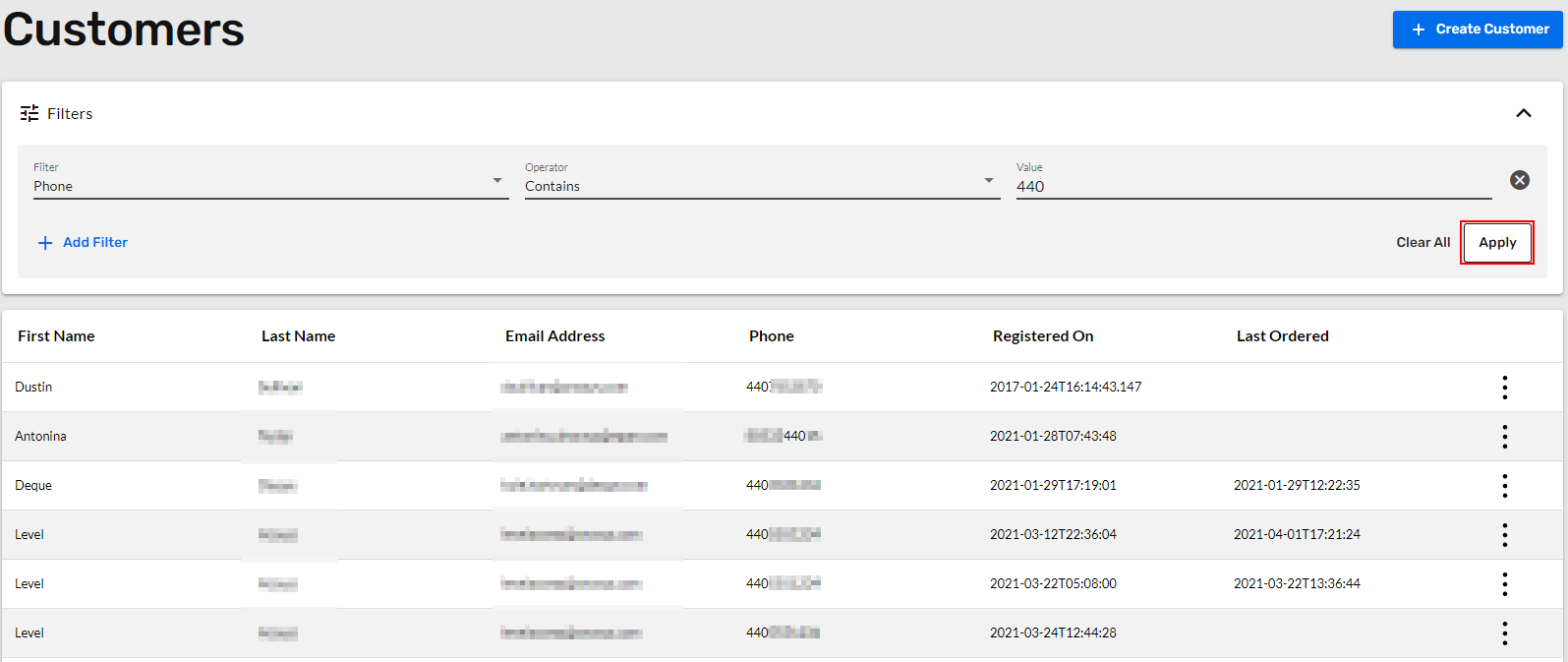
To search for a customer by phone number:
- Click Filters.

- Click Filter dropdown.

- Click Phone.

- Click Operator dropdown.

- Click Contains.

- Click the Value field.

- Enter an area code, or the full phone number with no hyphens or periods. This example will use the area code.

- Click Apply. Results appear below.
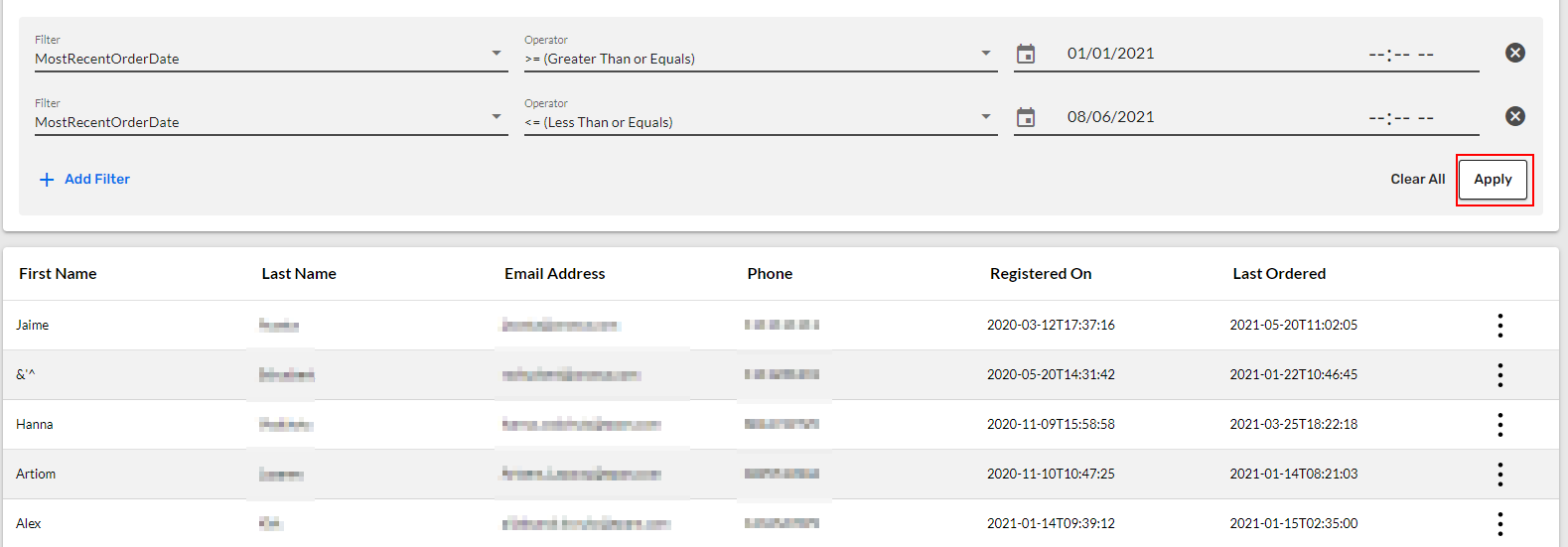
To search by Last Ordered date range:
- Click Filters.
- Click Filter dropdown.
- Click MostRecentOrderDate.
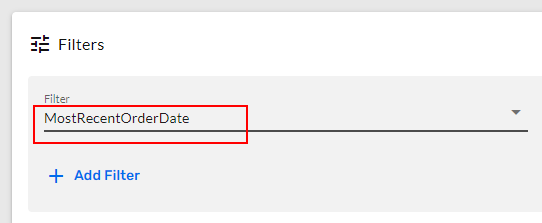
- Click Operator dropdown.
- Click an operator. This example will use Greater Than or Equal To.

- Click the calendar in the Value field.
- Select the earliest date in the applicable range. This example will use 1/1/2021.

- Click +Add Filter. Another filter line will populate.

- Click the new Filter dropdown.
- Click MostRecentOrderDate.
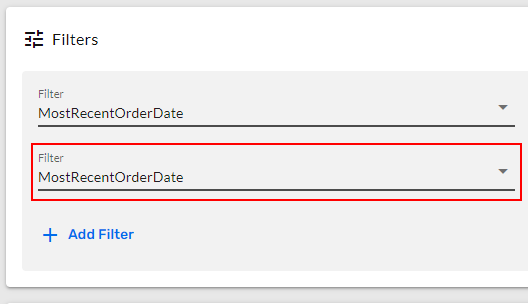
- Click the Operator dropdown.
- Click an operator. This example will use Less Than or Equal To.

- Click the calendar in the Value field.
- Select the latest date in the range. This example will use 8/6/2021.

- Click Apply. Results appear below.