
Adding a tip to an order after it has been placed is a common practice, as customers often wait to add the tip until after they receive their food. In the Onosys admin, tips are located under 'Orders' on the 'Adjust Payment' feature. To add a tip, navigate to the orders section in the left hand navigation and filter for the order to add the tip. Once the order is found, click on the order to open the details. The action buttons are on the top right and to add a tip click 'Adjust Payment.' Follow the prompt in the dialogue and the tip will be added.
Steps
- Login to the admin
- Navigate to "Orders" in the left hand margin and open the section.
- Filter for the order to add the tip.
- Once the order is found, there are two paths to get to the 'Adjust Payment' dialogue and add the tip:
a. Click the 3 dots at the end of the row for the Quick Actions:
b. Click the row to open the order details.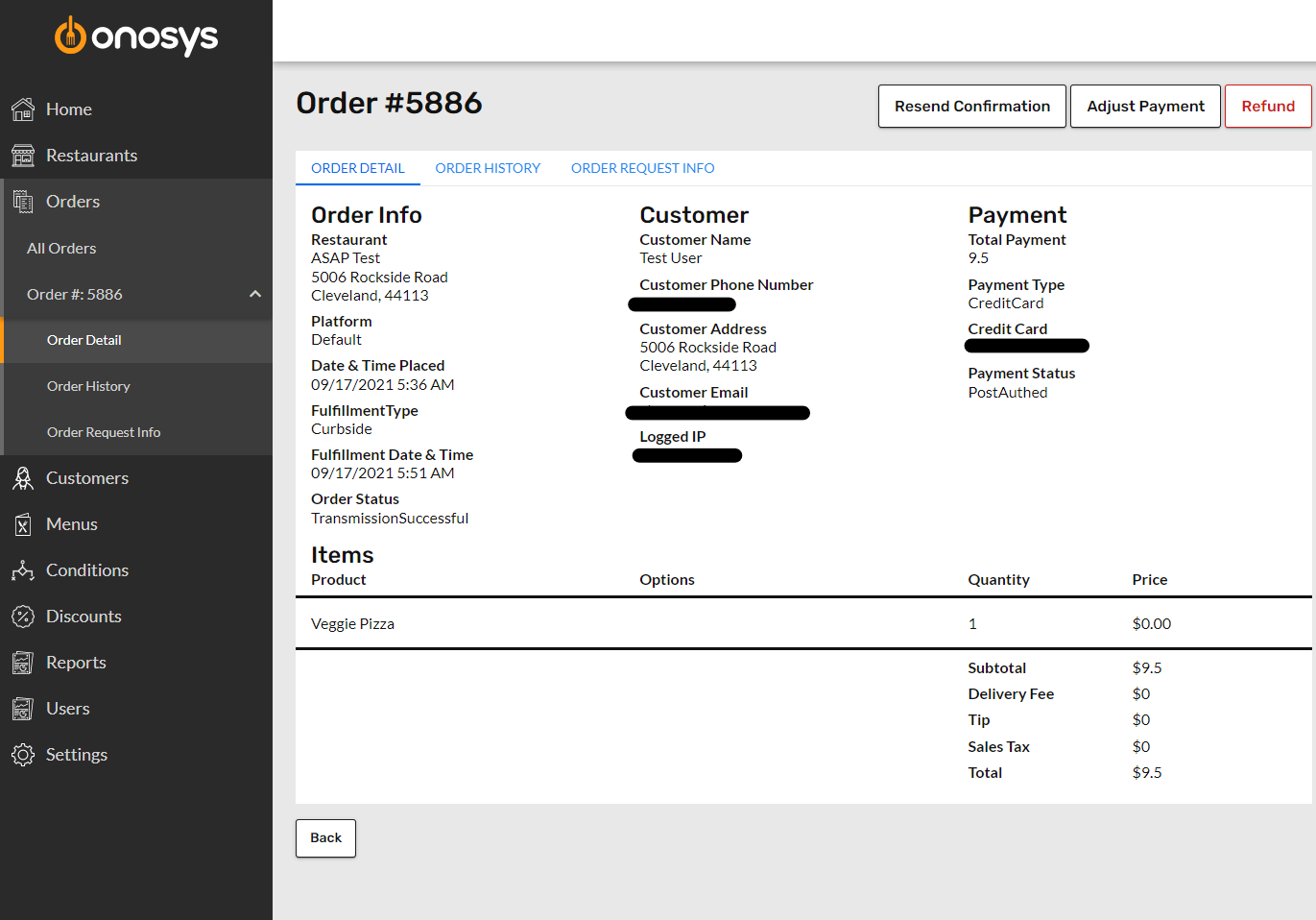
- Click 'Adjust Payment' to open the dialogue and add the tip to your order. In the example below, a $1.00 tip is added:
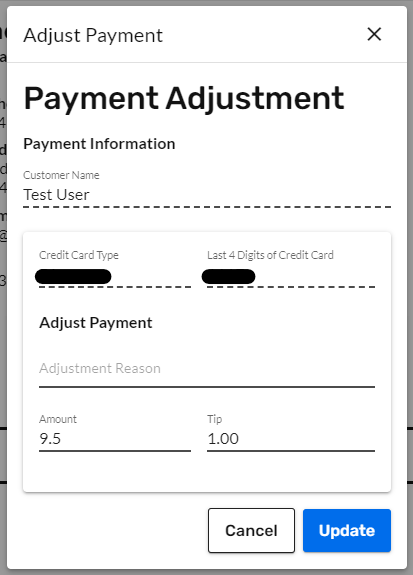
- Click Update and the tip has been added to the order.