
Products
Products are the menu items that a customer sees when they view a category at a restaurant. They are listed as the main items in the cart and on customer invoices.
Product Info tab (commonly-used basic product settings):
- Name: the menu element’s name in the Onosys admin; for products, this is typically structured as ‘[Name of category that the product is in] – [Product name].’ This is not the name that customers will see on the ordering site.
- Localized Text: area where settings such as descriptions and images can be added; details below.
- Active: whether or not a product is active/ displays to customers on the menu.
Localized Text Fields
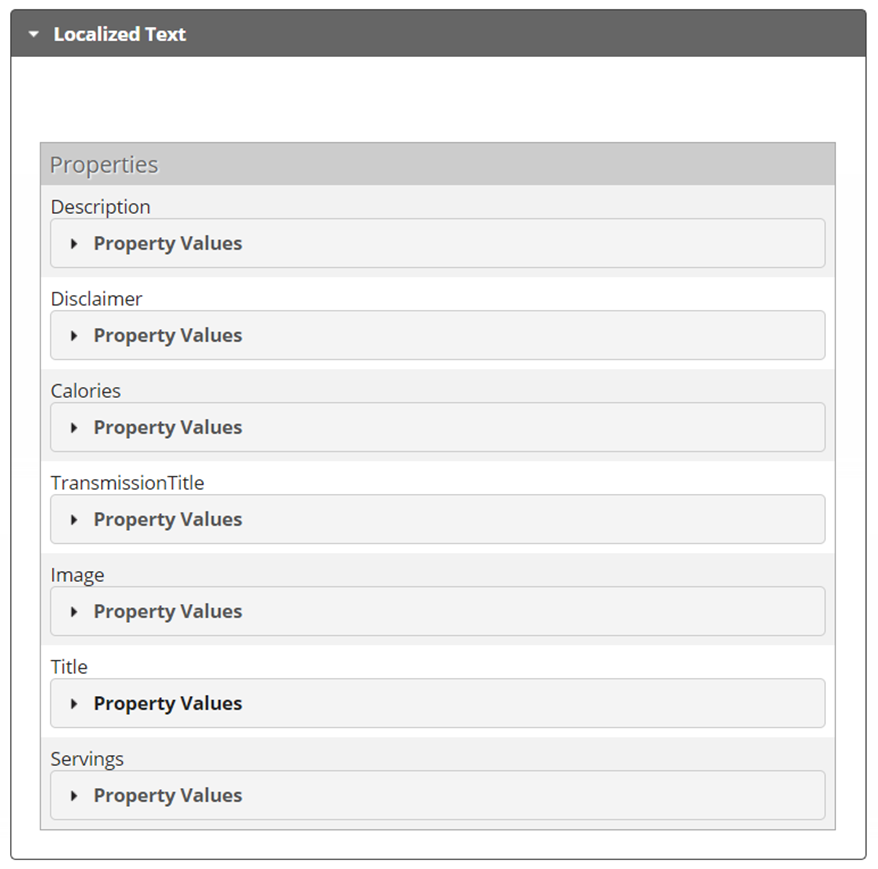
- Title: the customer-facing name of the product.
- Description: the product description that displays on its category and/or detailed view on the ordering site.
- Image: the product image that displays on its category and/or detailed view on the ordering site.
- Transmission Title: the name of the menu element that displays in Onosys’ records of orders transmitted to the POS.
- Calories, Servings, Disclaimer: open text fields where nutrition details can be applied.
Additional Localized Text Details
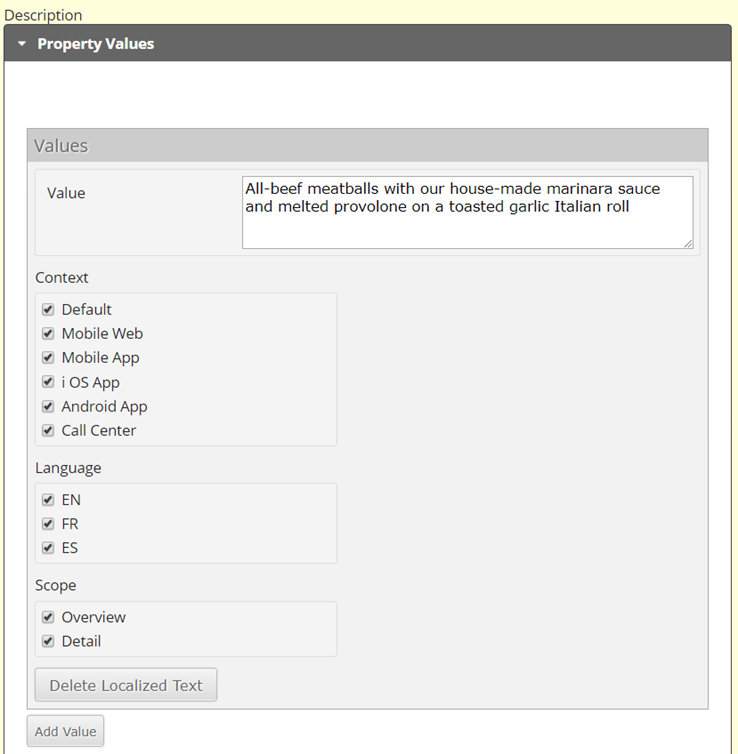
- Context: defines the sites/devices on which a piece of localized text will display.
- Default: displays on desktop views of the ordering site.
- Mobile Web: displays on the ordering site when viewed in a mobile device’s browser.
- Mobile App, iOS App, Android App: displays on the ordering site in iOS and/or Android apps that are available via App Store or Google Play (for clients where native apps are developed).
- Call Center: displays on the call center site (for clients where Call Center is used).
- Language: for clients where multi-lingual versions of the ordering site have been developed, defines the version (language) of the site on which a piece of localized text will display.
- Scope: for categories and products, defines the view in which a piece of localized text will display.
- Overview: the version of the product displayed when a customer is viewing a menu category (where all of a category’s active products display).
- Detail: the version of the product displayed after a customer has selected a product and is now customizing it (where the product’s options and option items also display).
Properties
- Discountable: if a valid Onosys discount (a discount created in the Onosys system for this client) is applied to the order, is this product’s price allowed to be discounted?
- Allow Comments: should a customer be allowed to enter comments (e.g. “dressing on the side”) on this product’s detail page?
- Allow Recipient Name: should a customer be allowed to assign a specific recipient’s name (e.g. as part of a group order, independent of the Comments field) to a product?
- Show Customize/Show Quick Add: one of these must be set to Yes in order for a product to be orderable.
- Show Customize: when a customer selects a product from a category, take the customer to a product detail page where the item can be customized (e.g. select a size or flavor, add comments, select a quantity)
- Show Quick Add: when a customer selects a product from a category, add the product to the cart because no additional customization is needed
- Show Quantity: should a customer be able to add more than one of a product to their cart at once?
- Lead Time: the product-specific prep time that is required by the restaurant to prepare the product. For most clients this lead time will override the restaurant lead time once the product has been added to a customer's cart.
- Default Price: the price assigned to the product.
- Depending on how the product is built, it’s not uncommon to see products priced at $0 in the admin, as the pricing may be added at the option item level (by size, etc.)
- Category Price Display: determines the format in which a product’s price will display on the customer-facing site.
- Note: this format is always set on the product, even if an item’s pricing is on its option items instead of at the product level.
- Tax Bucket: determines which of a restaurant’s tax calculations should be applied to the product.
- Topping Set: where applicable, determines which collection of toppings should be displayed on a product.
- Availability: the times and/or days at which a product can be ordered (e.g. lunchtime specials should only be available to order between 11am-3pm, Monday-Friday). If no timeframe is applied, then the product will be available to order at any valid fulfillment time.
- Product Details (optional): where the number of people that a product feeds can be defined. This does not display to customers but can be used in the creation of order conditions. It is commonly left blank/0.
- Option Groups: where an option group can be added to a product so that certain options/option items display to customers.
- Most products have one or more option groups linked to them, but some simple products (e.g. desserts or beverages where no customizations are necessary) do not.
- Side Dish Groups: where a side dish group can be added to a product so that certain other products are made easily available as upsells (e.g. dipping sauces on pizzas).
- Topping Info (only displays after a topping set has been saved on the Product Info tab): settings that control the product’s topping prices, number of toppings permitted on the product, number of free toppings permitted, and number of free topping substitutions permitted.
- Note: Price Per Tier fields are generally set at the option item level, as prices differ based on the size of an item.
- Preselected Topping (only displays after a topping set has been saved on the product’s Product Info tab): area where default toppings (e.g. ham and pineapple on a Hawaiian pizza) are set.
Sticky Nav
A product can show a sticky nav comprised of the product's options. Enable by adding this product tag:
ui-MenuItem-ShowOptionsNav
Configuration for the options sticky nav is located in the uiConfig `menu.menuItem.stickyNav`.
Summary
A product can show a summary of the currently selected options & toppings. Enable by adding this product tag:
ui-MenuItem-ShowSummary